
1
Step 1
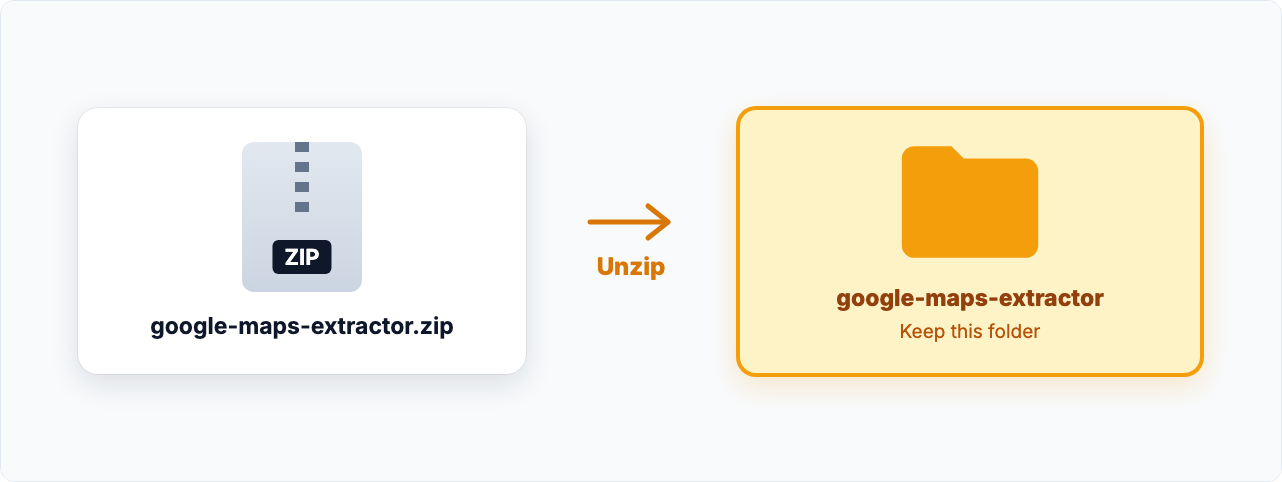
Unzip the file
Open the ZIP file you downloaded to unzip it, then move the unzipped folder somewhere it can stay, such as your Documents folder. Your browser runs the extension from this folder, so don't delete or move it later.

Install · Google Maps Extractor
Download Google Maps Extractor and add it to Chrome in a few quick steps.
Version 6.10.21 · ZIP file
Step 1
Open the ZIP file you downloaded to unzip it, then move the unzipped folder somewhere it can stay, such as your Documents folder. Your browser runs the extension from this folder, so don't delete or move it later.
Step 2
Copy this address, paste it into Chrome's address bar and press Enter.
chrome://extensionsStep 3
Switch on Developer mode in the top-right corner of the extensions page.

Step 4
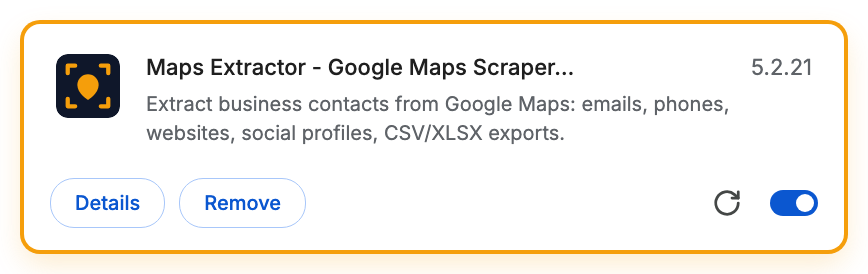
Click Load unpacked and choose the google-maps-extractor folder you unzipped in step 1.

Next, the getting-started guide walks you through collecting your first leads.
 Open the getting-started guide →
When this page lists a newer version, download it and repeat steps 1 to 4. The new version replaces the old one and keeps your settings.
Turn on Developer mode first. If the switch can't be turned on, your computer is managed by an organization that blocks this. Try a personal computer or ask your IT team.
You may have picked the ZIP file or a folder above it. Choose the google-maps-extractor folder you unzipped in step 1.
Some browser versions remind you that extensions loaded this way are switched on. That's expected: dismiss the message and keep using the extension.
Developer mode lets your browser run extensions from a folder on your computer. Only load folders from sources you trust, such as the download on this page.
The extension folder was probably moved, renamed or deleted. Put it back, or unzip a fresh download, then load it again.
Google Chrome and Microsoft Edge on desktop computers.
Email us and we'll help you get set up.